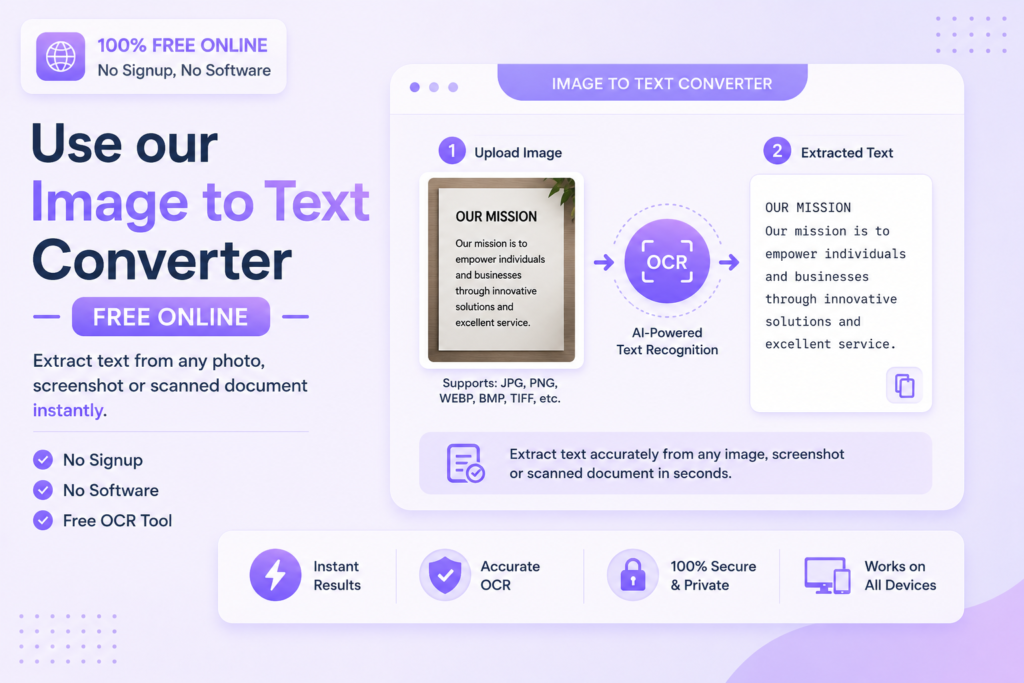
Image to Text Converter Free Online — Extract Text from Any Photo 2026
Extract text from any image, screenshot or scanned document instantly using AI-powered OCR technology — free, no signup required.
📷 Extract Text from Image — Free
📋 In This Guide
What is an Image to Text Converter?
An image to text converter is an online tool that uses OCR (Optical Character Recognition) technology to extract readable text from images. It scans photos, screenshots and scanned documents and converts the visual text into editable, copyable digital text.
OCR technology has been around for decades, but modern AI-powered tools make it significantly more accurate — even handling handwritten text, low-resolution images and complex document layouts with impressive precision.
✅ MySmartWork’s Image to Text tool uses AI-powered OCR to extract text from any image with high accuracy — completely free, no signup, works in your browser instantly.
How to Convert Image to Text Free Online — Step by Step
Extracting text from an image on MySmartWork takes just 3 simple steps:
Upload your image
Open the Image to Text tool and upload your photo, screenshot or scanned document. Supported formats include JPG, PNG and WEBP.
Extract text
Click the “Extract Text” button. The AI-powered OCR engine scans your image and identifies all readable text within seconds.
Copy or download your text
The extracted text appears in an editable text box. Copy it directly or download it as a text file for use anywhere.
⚠️ Tip: For best results, use clear, high-resolution images with good lighting. Blurry or very low-resolution images may reduce extraction accuracy.
Why Use an Image to Text Converter?
There are many everyday situations where extracting text from an image saves significant time:
- Retyping is eliminated — No need to manually type out text from photos, screenshots or printed documents.
- Searchable text — Extracted text is searchable and indexable, unlike images.
- Edit and format — Once extracted, text can be edited, reformatted and used in any document.
- Works on scanned documents — Convert old scanned files into editable digital text.
- Multilingual support — Modern OCR tools recognize text in multiple languages accurately.
- Accessibility — Makes image-based content accessible to screen readers and other assistive tools.
Free vs Paid Tools — What’s the Difference?
| Feature | MySmartWork (Free) | Paid Tools |
|---|---|---|
| Cost | ✅ Completely Free | ❌ Monthly subscription |
| Signup Required | ✅ No | ❌ Yes |
| OCR Accuracy | ✅ High (AI-powered) | ✅ High |
| Handwriting Recognition | ⚠️ Basic | ✅ Advanced |
| Mobile Friendly | ✅ Yes | ⚠️ Varies |
| File Privacy | ✅ Processed in browser | ⚠️ Uploaded to server |
Common Use Cases
🧾 Receipts and Invoices
Photograph a paper receipt or invoice and extract all text data instantly — amounts, dates, vendor names — without any manual typing. Perfect for expense tracking and accounting.
📄 Scanned Documents
Old scanned files, contracts and reports stored as image PDFs can be converted into searchable, editable text documents using OCR.
📇 Business Cards
Extract contact details from business card photos — name, phone number, email and address — and save them directly to your contacts.
📚 Books and Notes
Photograph pages from books, printed notes or whiteboards and extract the text for digital note-taking, studying or sharing.
🖼️ Screenshots
Extract text from screenshots of websites, apps or error messages that cannot be copy-pasted directly.
Frequently Asked Questions
Is the image to text converter really free?
Yes, MySmartWork’s Image to Text converter is completely free — no hidden charges, no subscription, no signup required.
What image formats are supported?
The tool supports JPG, JPEG, PNG and WEBP image formats for text extraction.
How accurate is the text extraction?
For clear, high-resolution images with printed text, accuracy is very high. Handwritten text and low-quality images may have reduced accuracy.
Is my image file safe?
Yes. Your image is processed entirely within your browser and is never uploaded to any external server. Your file stays on your device at all times.
Can it extract text from PDFs?
This tool works with image files. For text extraction from PDF documents, use the PDF to Word converter which handles PDF files directly.
Does it work on mobile?
Yes, the tool is fully mobile-friendly. You can even take a photo directly from your phone camera and extract text from it instantly.
📷 Extract Text from Any Image — Free
No signup. No software. No payment. Upload your image and get the text instantly.
Open Image to Text Tool →